How to Input Sale Lights on Your Listings
Starting December 11, 2025, Manheim will display visual sale lights on all listings across Manheim.com and OVE.com, including Presale, Simulcast Live, and Timed Sales. These lights provide transparency, help buyers manage risk, and allow sellers to avoid unnecessary arbitration by clearly indicating vehicle conditions and guarantees. All sale light designations follow the NAAA Arbitration Policy and Manheim’s Timed Sale policy.
Why Sale Lights Matter
Sale lights are standardized indicators that communicate the condition of a vehicle and the level of buyer protection:

Where to Input Sale Lights
You can indicate sale lights in multiple ways depending on your listing type:
Simulcast Live and In-Lane Listings
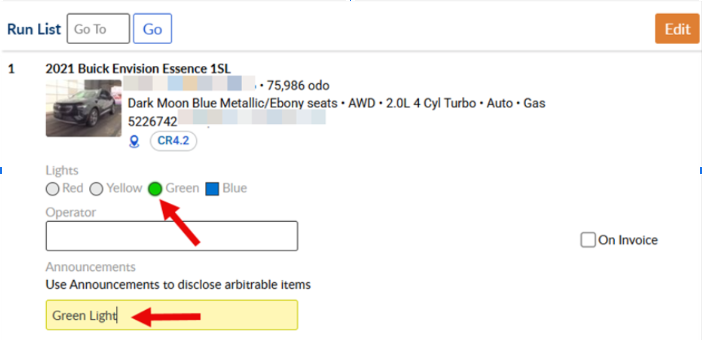
- Use Manheim.com Selling Center 🡪 Simulcast Live/Auction Sales/Run List to check the appropriate sale light values. In addition, you can also add exact sale light values in the announcement field to ensure Sale Lights are present for the Timed Sale should the vehicle become Simulcast Live/In Lane no sale.
Timed Listings on Manheim.com
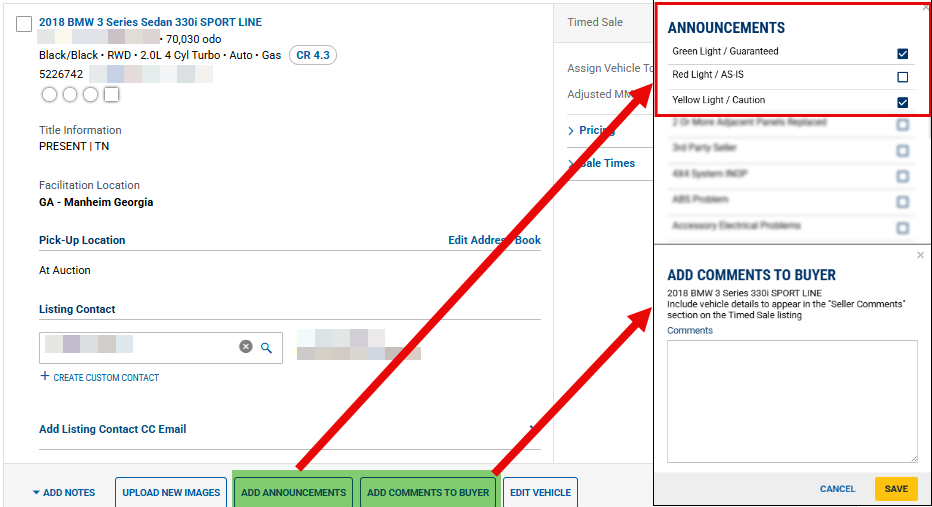
- Use Selling Center 🡪 Timed Sale 🡪 Listing Manager to select sale lights.
- Select sale light choices from the “Add Announcements” field or type the exact sale light verbiage in the “Add Comments” field to display sale lights on your timed listings.
Adding Sale Lights in Bulk
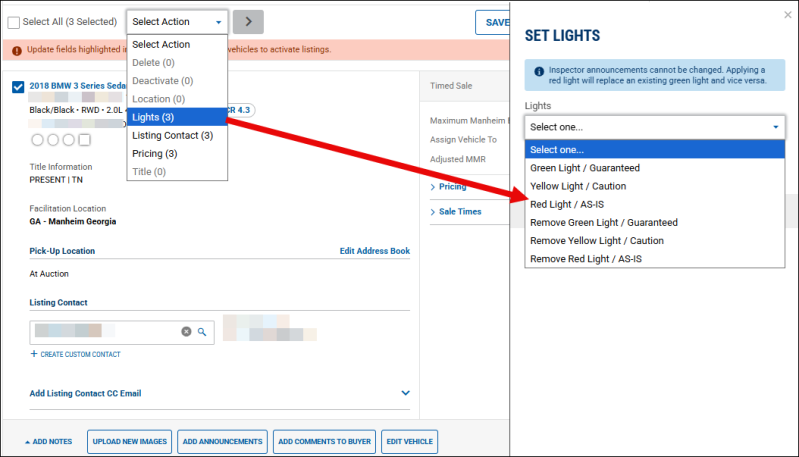
- Choose multiple vehicles, then use “Select Action” dropdown to choose “Lights.”
- The “Set Lights” feature allows you to choose the appropriate Sale Light value for the multiple vehicles.
- To add Green Light Yellow Light/ Ride and Drive with Caution, follow the previous steps to add Green Lights, then follow the first steps again to add Yellow Light.
- Now the initially selected vehicles will show both Green Light and Yellow Light/ Ride and Drive with Caution
Using “Inventory Manager Classic” on Manheim.com or “Inventory Manager” on OVE.com
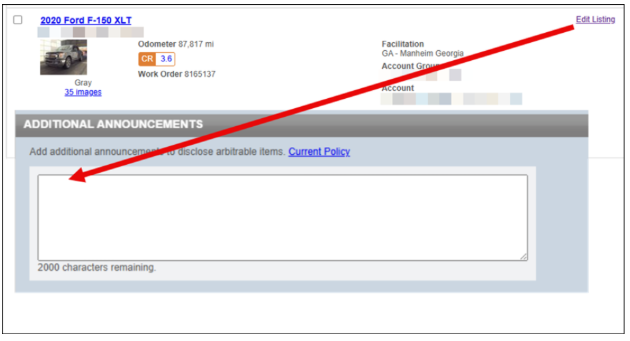
- Enter sale light values in the Additional Announcement feature when editing listings.
How to Indicate Sale Lights
- When manually typing sale light values into “Add Comments to Buyer,” “Announcements,” or “Additional Announcements” features, type lights as shown below:
- Red Light or As-Is
- Green Light
- Yellow Light
- Green Light Yellow Light
- Blue Light
Selling in Both In Lane/ Simulcast Live and Timed Sale channels
Lights will have to be indicated in both channels using the tools steps above. If offering In Lane/Simulcast Live first, sale light announcements added will carry over to the Timed Listing and enable the Sale Lights. No additional steps are needed. If offering as Timed Sale first, sale lights will have to be indicated in Selling Center 🡪 Simulcast Live/Auction Sales/Run List.
Sale Light Guidance
Manheim has updated the Arbitration Policy for Timed Sales to recognize the presence of Sale Lights. When lights are present on a listing, they now follow NAAA Arbitration policy should there be an arbitration claim. When sale lights are not present, listings follow the Arbitration Policy for Timed sales.
For Sale Light Guidance, See Section II and Appendix I of the NAAA Arbitration Policy.

