How to Download the Wallet and Set Up Your Driver Credentials for Secure Vehicle Transfer
If you’ve been invited to pick up a vehicle through Secure Vehicle Transfer, you’ll need to create a driver account and install the Manheim SVT Wallet app. Your wallet holds the digital credential you’ll present when you arrive to pick up the vehicle. This article walks through creating your account and installing the app on Android or iPhone.
Note: You’ll receive an invite email once a dealer assigns a pickup to you. Account setup works on your phone or on a computer, you’ll only need your phone for the app install step.
- Step 1 – Open Your Invite Email ›
- Step 2 – Create Your Account ›
- Step 3 – Choose a Password ›
- Step 4 – Check Your Email to Verify ›
- Step 5 – Verify Your Account ›
- Step 6 – Email Verified ›
- Step 7 – Log In ›
- Step 8 – Enter Your Name ›
- Step 9 – Your Wallet Is Ready ›
- Step 10 – Install on Android ›
- Step 11 – Get TestFlight (iPhone) ›
- Step 12 – Install TestFlight ›
- Step 13 – Open TestFlight ›
- Step 14 – Install the Wallet (iPhone) ›
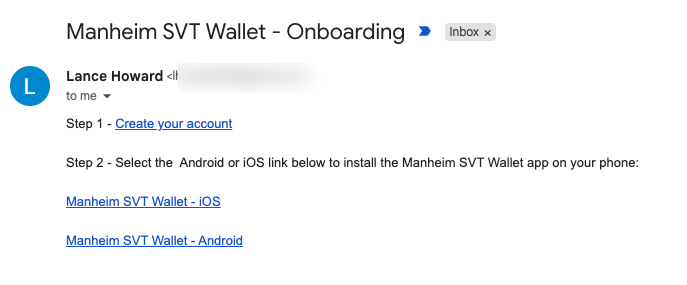
Open the email titled Manheim SVT Wallet – Onboarding. Select Create your account to get started. You can do this on your phone or on a computer.
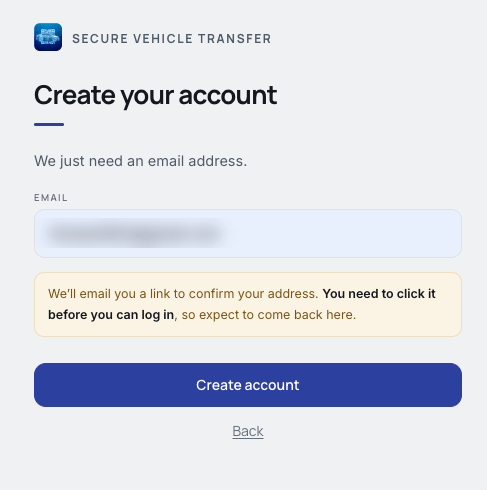
Enter your email address and select Create account.
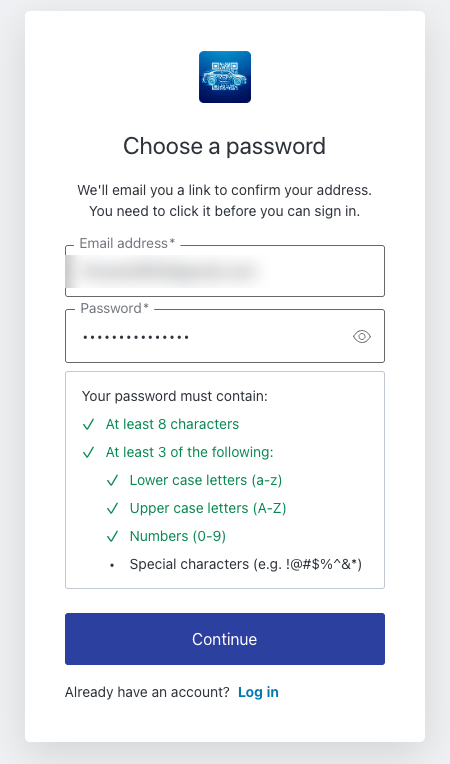
Choose a password. It needs to be at least 8 characters and include at least 3 of the following: lowercase letters, uppercase letters, numbers, or special characters. Select Continue.
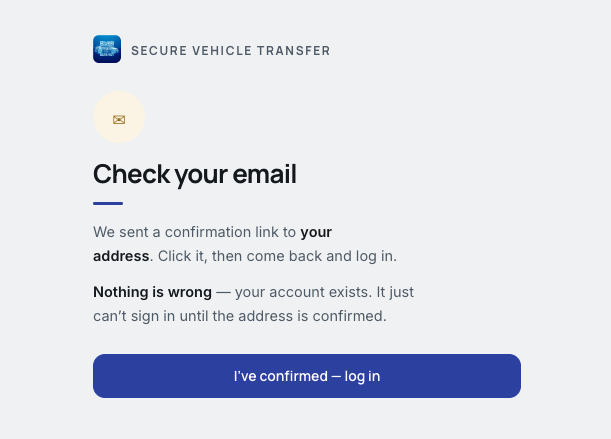
You’ll land on this screen right away, your account exists but can’t sign in until your email is confirmed. Leave this page open, you’ll come back to it in Step 6 once you’ve verified your address.
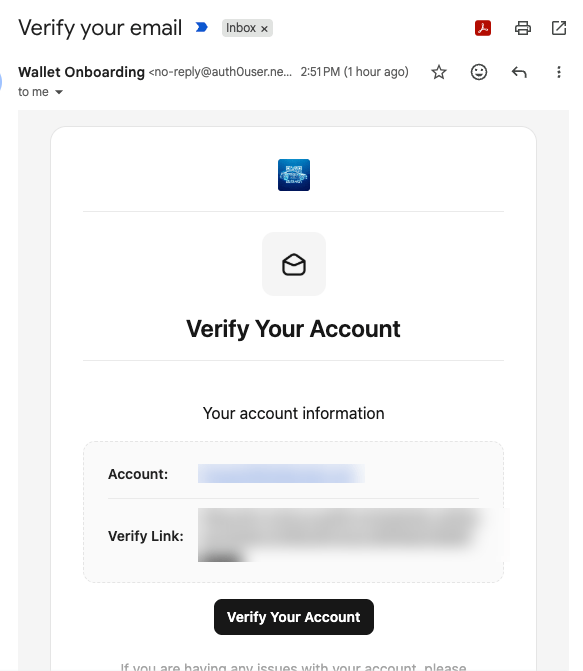
Check your email for a message titled Verify your email from Wallet Onboarding. Select Verify Your Account.
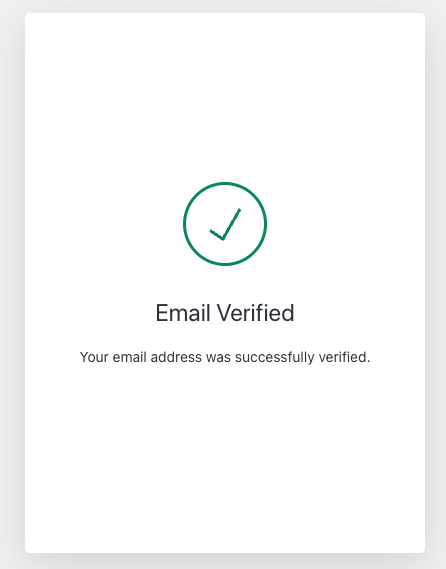
You’ll see confirmation that your email address was verified. Return to the Check your email page from Step 4 and select I’ve confirmed – log in.
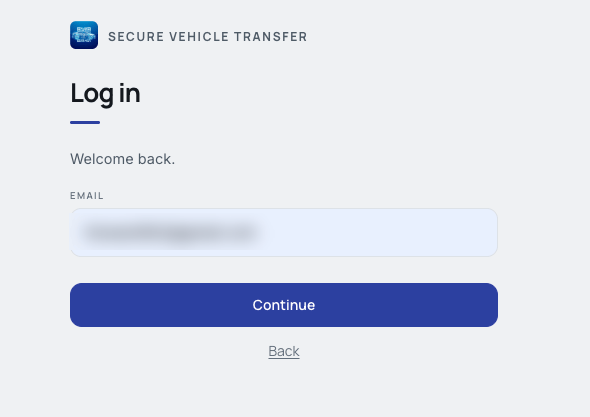
Enter your email address again and select Continue.
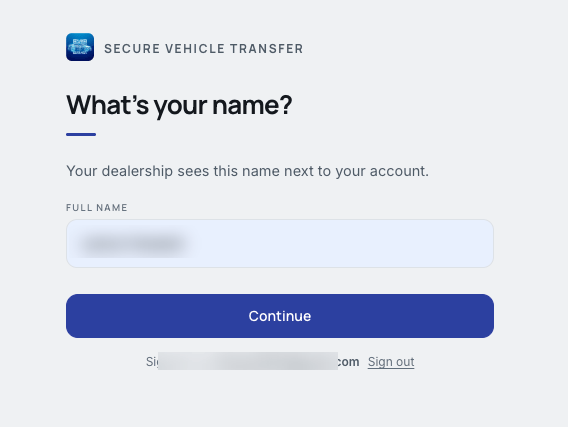
Enter your full name. This is the name the dealership sees next to your account when they assign you a vehicle. Select Continue.

Your account is set up and your credential is in your wallet. Next, install the Manheim SVT Wallet app on your phone, you’ll need it to complete a pickup.
Installing the Wallet – Android

Return to your invite email and select Manheim SVT Wallet – Android. This opens the Google Play Store listing. Select Install. Once it’s installed, open the app and sign in with the email and password you created in Step 3.
Installing the Wallet – iPhone
Note: The app is currently distributed through Apple TestFlight while it’s in beta. This install process is subject to change once Apple approves the app for full App Store release.
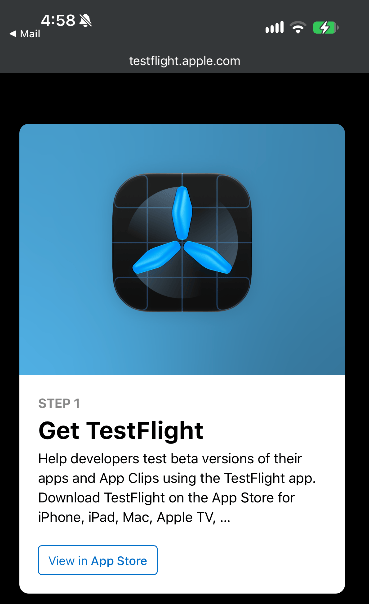
Return to your invite email and select Manheim SVT Wallet – iOS. This opens a page asking you to get TestFlight first, Apple’s app for beta software. Select View in App Store.
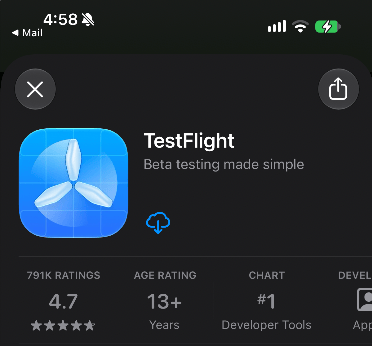
Install TestFlight from the App Store, the same way you’d install any app.
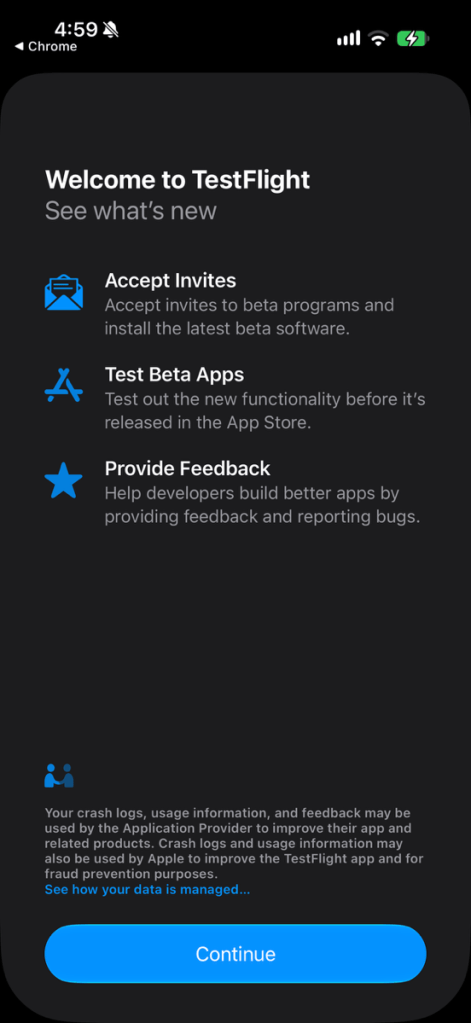
Open TestFlight and select Continue.
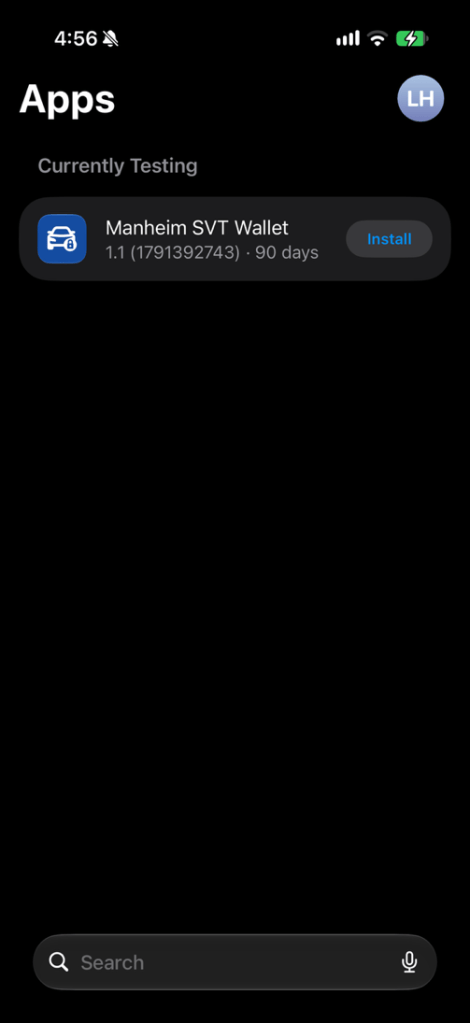
Under Currently Testing, find Manheim SVT Wallet and select Install. Once it’s installed, open the app and sign in with the email and password you created in Step 3.

